
Use the dashboard to choose the next action
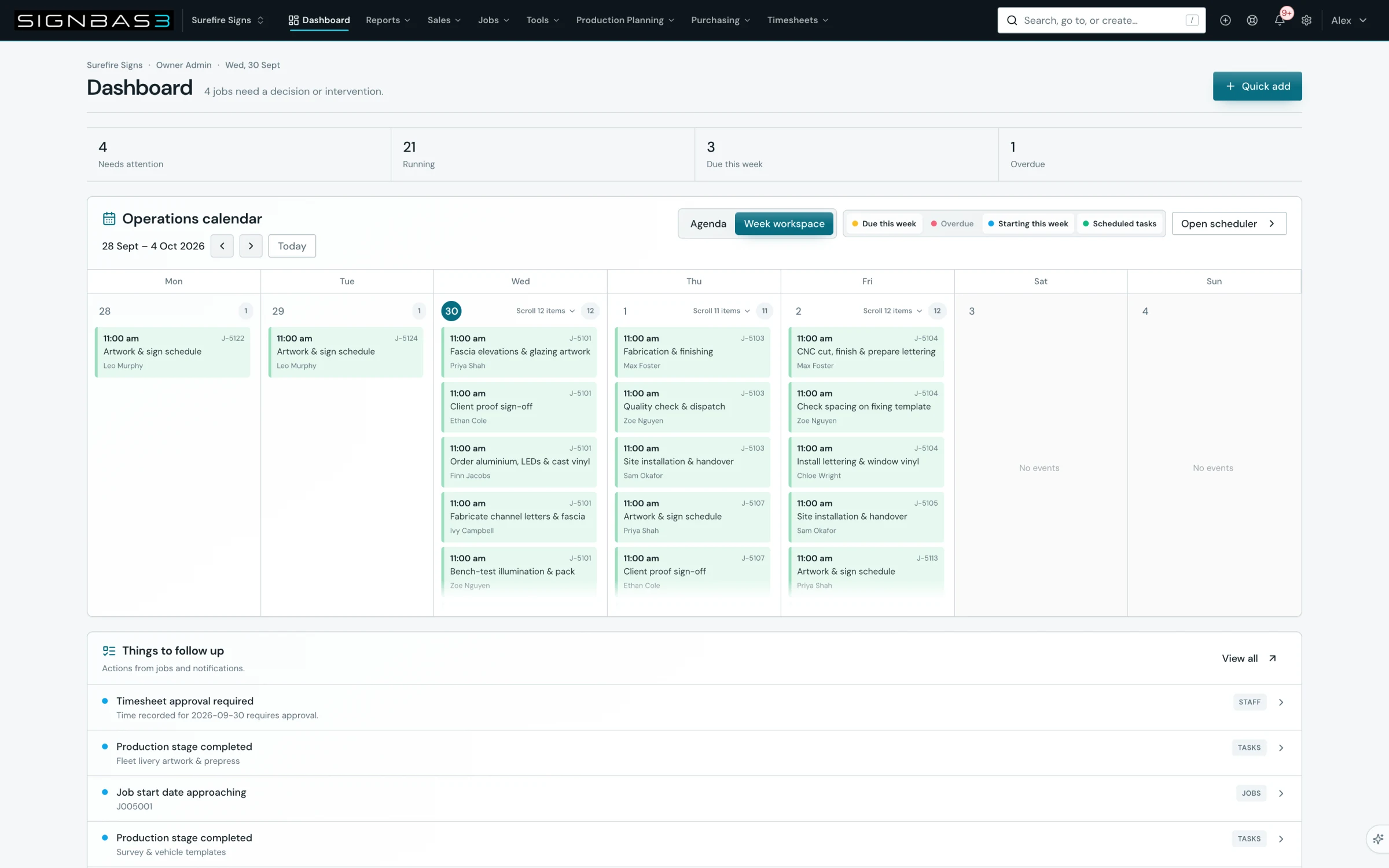
Read the workspace dashboard as an operating queue, then open the source record behind a priority, exception or due item.
Best forOwner / Admin · Sales / Estimator · Project Management / Production · Accounts
Before you beginUse a representative record and confirm you have the permissions required for this area.
Step by step
- Open the dashboard and identify the cards, counts and shortcuts intended for your role.
- Start with overdue, blocked or exception signals before general totals.
- Open a signal and confirm the underlying client, quote, job, task, purchase or invoice record.
- Make the operational update on that source record, including an owner or next action where required.
- Return to the dashboard and confirm the signal now reflects the current state.
Good practice
Treat the dashboard as a navigation and attention layer. If the signal is wrong, correct the source record rather than working around it in a separate list.
When you are finishedYou can explain what needs attention, who owns it and which source record should be updated.
Before you begin
- Your role and workspace shortcuts have been configured.
- The team is keeping job, quote, task and financial states current.
Complete workflow
How the workflow moves
- 01Scan
Review role-relevant priorities, due work and exceptions.
- 02Open
Follow a card or count to the underlying record.
- 03Act
Update the source record instead of treating the dashboard as a second system.
- 04Recheck
Return to the dashboard and confirm the signal has changed.
Screen reference
What you will see
If your workspace behaves differently, record the relevant job, client or record number and raise a support ticket so the team can investigate the exact context.