
Configure production planning
Choose the job statuses, department task ownership, staff availability, department priorities and task capabilities that decide what Capacity Reporting and the scheduler can plan.
Step by step
- Open Settings → Production Planning, read the Shared planning scope notice; the page opens on the Job Statuses tab.
- Under Job statuses included in planning, tick every status whose jobs should add work to the forecast, then select Save planning statuses.
- Open the Departments tab, enter a Department name, choose a Colour, tick its Job task items and select Add department.
- Select Edit department on each existing department to confirm task ownership, and tick Override calculated output only when staff hours do not represent real output.
- Open the Staff tab, select Edit profile on a person, and set Participates in planning and Show in scheduler.
- Under Weekly availability, enter Default hours/day and FTE, tick the working days and adjust each day's hours.
- Build the Department priority list in the order the person should serve departments, then tick their Normal task capabilities.
- Select Save planning profile, repeat for each person, then open Capacity Reporting and confirm each lane shows the output and mapped staff you expect.
Good practice
An empty or overloaded lane is usually a setup signal: before forcing work into a week, check the status selection, the department's Job task items and each person's participation, working days and department order.
Before you begin
- You hold the Owner or Admin role.
- Job statuses are configured and active.
- The organisation task catalogue is complete and obsolete tasks are switched off.
- Staff records exist for everyone who does production work.
Complete workflow
How the workflow moves
- 01Define demand
Tick the job statuses whose open tasks should count as work to plan.
- 02Map ownership
Create departments and give each active catalogue task one owning department.
- 03Set output
Record each person's participation, scheduler visibility, working days and hours.
- 04Order and match
Rank each person's departments and tick their normal task capabilities.
- 05Verify
Open Capacity Reporting and confirm each lane shows the output and demand you expect.
Setup dependency
Settings that change this workflow
The same task can behave differently between organisations. Check these settings before treating a different result as an error.
/settings/capacity-planningDecides which jobs' open tasks add forecast demand to Capacity Reporting and scheduler prefill; unselected statuses add none while existing bookings stay visible.
Open in SignBas3 →/settings/capacity-planningPlaces each active task's open work in the lane of the one department that owns it.
Open in SignBas3 →/settings/capacity-planningReplaces staff-derived weekly output for a department with a fixed number of hours in reporting.
Open in SignBas3 →/settings/capacity-planningControls whether a person's hours contribute to department capacity and whether they have a row in the operational scheduler.
Open in SignBas3 →/settings/capacity-planningSets the hours each person offers per week and the order in which those hours flow to departments.
Open in SignBas3 →/settings/capacity-planningGuides Fitch schedule prefill within the person's departments; manual assignment stays unrestricted.
Open in SignBas3 →Screen reference
What you will see
What this controls
Settings > Production Planning is one workspace for the four inputs that decide what SignBas3 can plan: which job statuses count as plannable work, which department owns each catalogue task, how many hours each person offers each week, and which departments and tasks each person normally covers. The Shared planning scope notice explains that Capacity Reporting and scheduler prefill use these same staff profiles, department mappings and selected job statuses; existing scheduled commitments remain visible and excluded statuses add no unscheduled forecast demand.
Before you start
- You need the Owner or Admin role.
- Job statuses exist and are active; see Set up job statuses.
- The task catalogue is complete and obsolete tasks are inactive; see Configure reusable job tasks.
- Agree the department list: create one for each area whose hours you want to see separately.
Walkthrough
1. Open the workspace
Open Settings > Production Planning. Below the Shared planning scope notice sit three tabs: Job Statuses (Statuses on a phone), Departments and Staff.
2. Choose the statuses that count as demand
The Job statuses included in planning card lists every active, non-retired status with its semantic type underneath. Tick a status when its jobs' open tasks should add to the forecast. The note beside the button confirms that Completed, On Hold, and any other unselected statuses are excluded from new forecast and prefill demand. Select Save planning statuses; the page shows Capacity job statuses saved.
3. Add a department
Open the Departments tab. Existing departments appear collapsed under Departments and job tasks, each showing its job task items count and calculated staff hours/week. In the Add department card, enter a Department name, choose a Colour and tick the tasks it owns under Job task items. Add department stays disabled while the name is empty or already used, or while Override calculated output is ticked without valid hours; a duplicate shows "A department with this name already exists." A successful add shows Capacity department added.
4. Review and adjust existing departments
Select Edit department to expand a row, change the name, colour or task ownership and select Save; the page shows Capacity department saved. A task another department owns is greyed with Assigned to and its name; untick it there first to move it. Ticking Override calculated output enables the Manual output hours per week field and the helper text changes to "The override replaces staff-derived output in reporting." Archive asks "Archive [name]? Existing job work will retain its department history." and then shows Capacity department archived.
5. Set a person's participation
Open the Staff tab. Under People and availability each person appears collapsed with weekly hours, department order and task capability count. Select Edit profile. Participates in planning decides whether the person's hours contribute to department capacity; Show in scheduler controls their operational scheduler row. A person with either switch off shows an Excluded from planning or Hidden from scheduler badge.
6. Enter weekly availability
Enter Default hours/day and an FTE from 0 to 2, then tick each working day, Mon to Sun. Ticking a day fills its hours from the default; adjust any day in quarter-hour steps, and unticking a day sets it to zero. The profile heading shows the ticked days' total as h/week.
7. Order departments and choose capabilities
Under Department priority, add departments with the plus buttons in the order the person should serve them; capacity flows to priority 1 first, then to lower departments as demand is satisfied. Drag the handle to reorder; Remove drops a department and clears any capabilities that belonged to it. Normal task capabilities lists the tasks owned by the chosen departments (until one is chosen it reads "Assign a department to choose its task capabilities."); tick the ones the person normally does. Capabilities guide automated scheduling; manual assignment remains unrestricted.
8. Save and verify
Select Save planning profile; it enables once something has changed and no capability is mismatched, and the page shows Staff planning profile saved. Repeat for each person, then open Capacity Reporting from the Scheduling menu and confirm each lane's weekly output and mapped staff; see Read the capacity report.
What changes elsewhere
- Capacity Reporting (/capacity-planning): each department becomes a lane whose weekly output is participating staff hours flowing through priorities, or the override; open tasks on included jobs become forecast load; a note counts the tasks the status selection excludes.
- Scheduler (/staff-scheduler): a person with Show in scheduler off has no row, and the All capacity departments filter narrows the staff list by planning department.
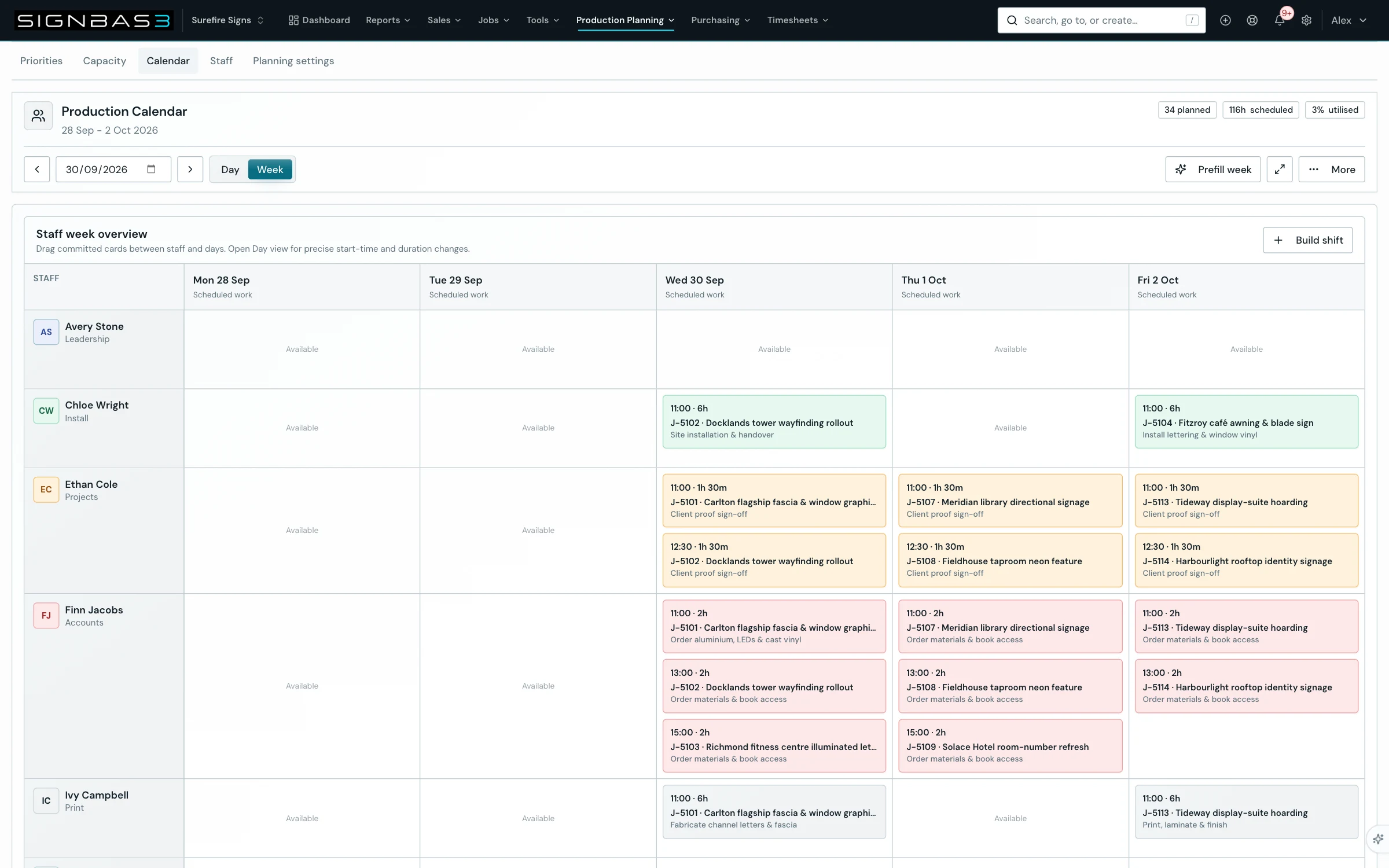
- Prefill week (/staff-scheduler): the Weekly schedule automation panel builds a review-only draft using saved department priorities first and task capabilities for matching.
- Staff (/staff): the staff edit dialog states that Production Planning owns scheduling inputs and offers Open Production Planning.
Common problems
| Symptom | Cause | Fix |
|---|---|---|
| A task is greyed out in Job task items | Another department already owns it; each task has one owner. | Untick it in the owning department, save, then tick it here. |
| "No active job task templates are available." | The task catalogue is empty or every task is inactive. | Add or reactivate tasks in Settings > Job Tasks. |
| A department shows 0 calculated staff hours/week | No participating person lists it in their priorities, or their working days are empty. | Edit the relevant staff profiles, or tick Override calculated output. |
| Save planning profile is disabled with an amber warning | A ticked capability belongs to a department that is no longer selected. | Re-add the department or untick the capability, as the message asks. |
| "Capacity settings unavailable" | The tab's data could not be loaded; nothing changed. | Refresh the page and try again. |
Check your work
- The Job Statuses tab shows every plannable status ticked and holding states such as On Hold clear.
- Every department row lists the right job task items and calculated staff hours above zero, or a deliberate override.
If your workspace behaves differently, record the relevant job, client or record number and raise a support ticket so the team can investigate the exact context.