
Read the capacity report
Read demand against available hours per department and week in Capacity Reporting, understand what the exclusions mean, and act on an overloaded or empty week.
Step by step
- Open Capacity Reporting from the Scheduling menu and wait for Building capacity forecast… to clear.
- Use Current week, the two 4 weeks buttons and Forecast range to frame the period you are reviewing.
- Read the summary cards: Departments, Weekly output, Scheduled, Forecast load, Utilisation and Beyond range.
- Check the line stating how many open tasks the Production Planning job-status settings exclude.
- Scan each lane's badges and overview strip, then select Expand all departments or a lane heading to open its week rows.
- In each week row, compare the blue scheduled and amber forecast segments with the dashed free space, and look for Over capacity by or No output capacity.
- Select View work items or a segment to open the exact job task behind a week.
- Act in the Scheduler, in Planning settings or on the job, then return and confirm the row has changed.
Good practice
Review the report at the same point each week with the Scheduler open in another tab, and treat every red badge as a decision to record.
Before you begin
- You hold the Owner, Admin or Manager role.
- Settings > Production Planning has at least one department with job task items, staff with department priorities, and included job statuses.
- Open job tasks carry estimated hours.
Complete workflow
How the workflow moves
- 01Frame
Set the start week and forecast range for the period you are reviewing.
- 02Read
Take in the summary cards, the exclusion line and each department's badges.
- 03Drill in
Expand a lane, read the week rows and open the work items behind a week.
- 04Act
Move bookings in the Scheduler, change output or demand in Planning settings, or adjust the job task, then recheck.
Screen reference
What you will see
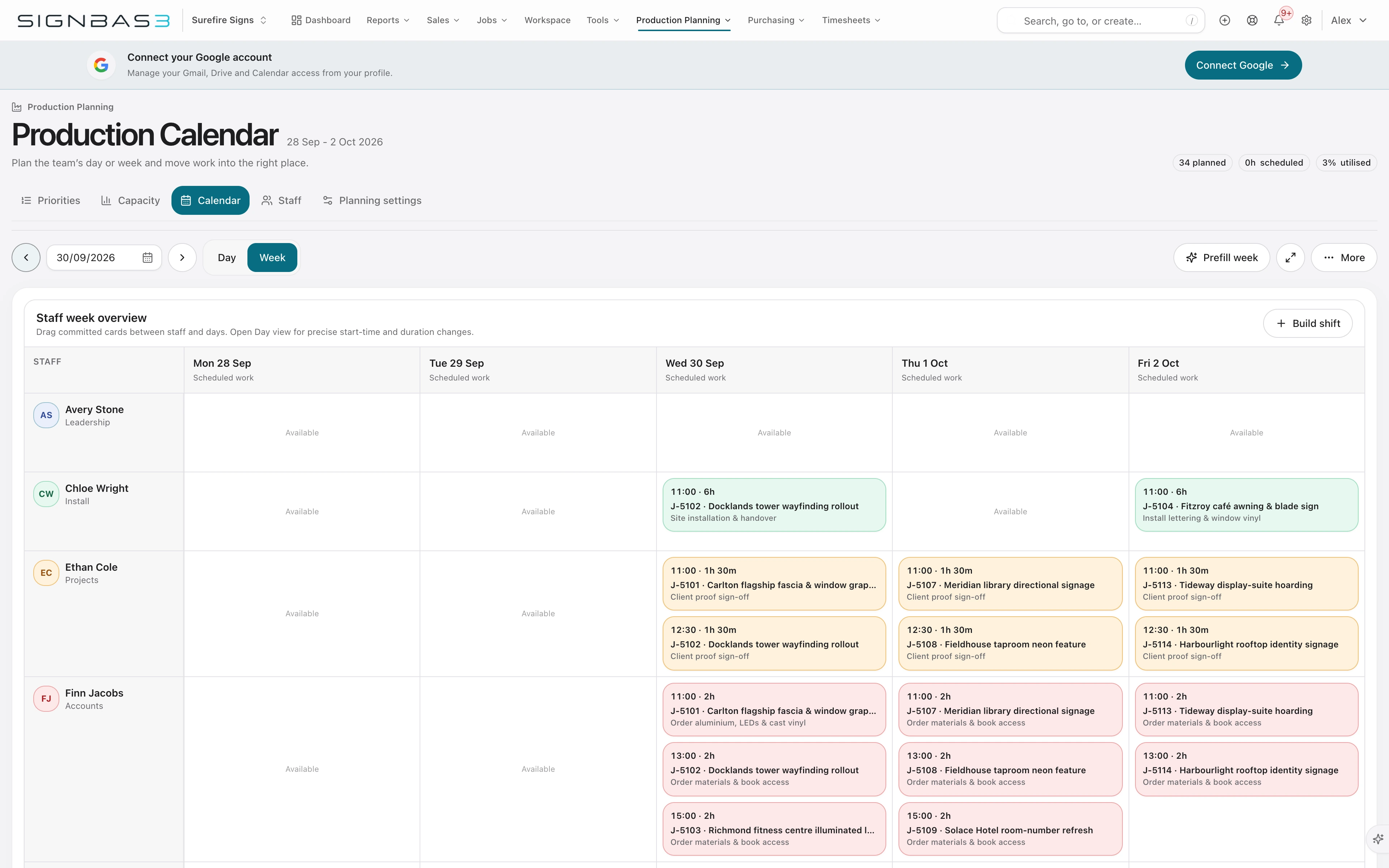
What this controls
Capacity Reporting sits in the Scheduling menu beside the Scheduler. Its header describes it as a horizontal weekly timeline using the shared Production Planning staff, department and job-status settings, and states that forecasting is read-only and never changes the scheduler.
Three colours carry the report. Blue is Scheduled: bookings that exist in the Scheduler. Amber is Forecast load: remaining hours on open tasks nobody has booked, placed into the earliest week with room in due-date order. Dashed space is Available. Every figure comes from the settings in Configure production planning.
Before you start
- Owners, Admins and Managers can open the page.
- Production Planning has at least one department with job task items, staff priorities and included statuses. Without a department the page shows "No capacity departments configured" with a Configure departments button (Managers see "Ask an admin to configure departments in Production Planning settings.").
Walkthrough
1. Open Capacity Reporting
The page reads "Building capacity forecast…" while it loads. Planning settings in the header (Owners and Admins only) opens Settings > Production Planning. If loading fails the page says "Capacity reporting is unavailable. No schedule data has been changed." with a Try again button.
2. Frame the period
The toolbar starts on the Monday of the current week and shows Starting with that date. The 4 weeks buttons move the start back or forward, Current week returns to today, and Forecast range offers 8, 12, 26 or 52 weeks, starting at 12.
3. Read the summary cards
Departments counts the lanes. Weekly output is the sum of every department's output for the first week in view. Scheduled totals booked hours in the range. Forecast load totals unbooked remaining hours, including any that do not fit in the range. Utilisation compares placed hours against the range's output and turns red above 100%. Beyond range shows the hours that could not be placed and turns red above zero.
4. Understand the exclusions
A line such as "12 open tasks (38h) are excluded by the Production Planning job-status settings." appears whenever jobs in unselected statuses still carry open tasks with remaining hours. Completed and cancelled tasks never appear. A task already booked in the Scheduler still shows as blue even when its job status is excluded, so committed work never disappears. Work whose catalogue task is not owned by an active department appears in no lane; map it under Job task items to bring it in.
5. Scan the department lanes
Each lane shows its colour, name and a subtitle: hours per week, then mapped staff count or manual override with the staff-calculated figure, then capacity tasks count. Four badges follow: Scheduled, Forecast load, Utilisation, and either Runs out with the date the last busy week ends or, in red, the hours beyond range. An overview strip draws one bar per week labelled S (scheduled) and F (forecast). Select Expand all departments (it becomes Collapse all departments), or a lane heading, to open the week rows.
6. Read a week row
Each row shows its date span and output hours, a bar and the totals scheduled and forecast. Blue segments are bookings, amber segments are forecast blocks, and the dashed area shows the free hours, for example 6h free. Hovering a segment shows the job number, task name, hours, Scheduled or Forecast load, and the booked dates or due date. Over capacity by appears in red when bookings exceed output and the row border turns red; No output capacity appears in amber when the week has zero output.
7. Open the work behind a week
Select View work items (the link carries the count) to list every block in the week. Selecting a block or a list entry opens that job's Tasks tab with the task highlighted, to adjust its estimate, due date or status.
8. Act on the week
Booking changes belong in the Scheduler; output and demand changes belong in Planning settings; work changes belong on the job.
| What you see | What it means | Action |
|---|---|---|
| Over capacity by [hours] | Bookings in that week exceed the department's output. | Move or shorten bookings in the Scheduler, or add the department to a person's priorities or extend their hours in Planning settings. |
| Beyond range badge in red | Open work does not fit within the selected range. | Extend the Forecast range to see when it lands, add output, or renegotiate due dates on the jobs under View work items. |
| No output capacity | No participating staff hours reach the department that week and no override is set. | Edit staff profiles or tick Override calculated output for the department. |
| A week that is mostly free | Demand has run out before output has. | Check the exclusion line; pull forward jobs, or treat it as spare capacity to sell. |
| Runs out now | The department has no scheduled or forecast hours in the range. | Confirm its tasks are mapped under Job task items and that jobs using them are in included statuses. |
What changes elsewhere
- Nothing changes from this page: it reads the shared settings and the Scheduler's bookings.
- Scheduler (/staff-scheduler): every booking added or moved there appears here as blue hours, and the amber forecast shrinks to match.
- Settings > Production Planning (/settings/capacity-planning): status, department, availability and priority changes alter output, forecast placement and the exclusion count.
Common problems
| Symptom | Cause | Fix |
|---|---|---|
| Expected work is missing from every lane | The job's status is not included, the task is complete, it has no remaining hours, or its catalogue task is not mapped to a department. | Check the exclusion line, the task's estimate and the department's Job task items. |
| A lane's Forecast load badge exceeds its week rows | The badge includes hours beyond the range; week rows show only what fits. | Read the beyond range badge, or extend the Forecast range. |
Check your work
- Every lane shows output hours and a mapped staff count or override that match Production Planning.
- No week row shows Over capacity by or No output capacity without a decision recorded against it.
If your workspace behaves differently, record the relevant job, client or record number and raise a support ticket so the team can investigate the exact context.